Caching is one of the fastest and easiest ways to speed up a WordPress site. The right caching plugin can cut your load time in half with just a few clicks, while the wrong choice can leave you confused or even break your pages. In this guide we compare the best WordPress caching plugins, explain what each one does well, and help you pick the right WordPress caching plugin for your site.
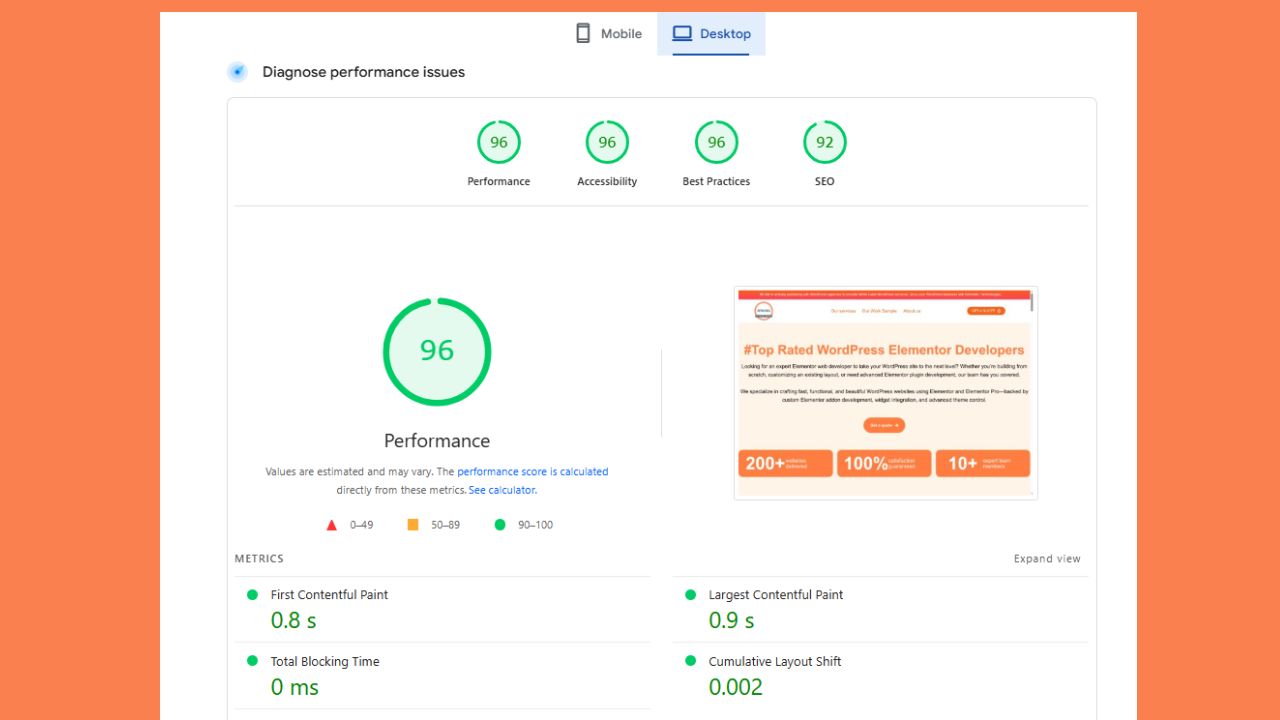
Caching is a core part of any WordPress speed optimization plan, so getting it right is worth the effort.
Why Caching Matters for WordPress Speed
Every time someone visits your WordPress site, the server normally builds the page from scratch. It runs PHP, queries the database, and assembles everything before sending it to the visitor. This takes time and server resources on every single visit.
Caching solves this by saving a ready made version of your page. The next visitor gets the saved copy instantly, with no rebuilding needed. The result is faster load times, less strain on your server, and a better experience for your visitors.
What a Caching Plugin Actually Does
A good caching plugin usually does more than store pages. The best ones combine several speed features in one place:
- Page caching, saves full HTML copies of your pages for instant delivery.
- Browser caching, tells browsers to store files locally so repeat visits are faster.
- Minification, shrinks CSS, JavaScript, and HTML by removing extra characters.
- GZIP or Brotli compression, makes files smaller before they are sent.
- Lazy loading, loads images only when a visitor scrolls to them.
- Database cleanup, removes clutter that slows queries.
Not every plugin includes all of these, which is why choosing the right one matters.
What to Look For in a Caching Plugin
- Ease of use, can you set it up without breaking your site?
- Features, does it handle minification, lazy loading, and more, or just basic caching?
- Server compatibility, some plugins work best on specific hosting setups.
- Support and updates, is it actively maintained and well supported?
- Price, do the free features cover your needs, or do you need a premium plan?
The Best WordPress Caching Plugins Compared
1. WP Rocket (Best Overall, Premium)
WP Rocket is the most popular premium caching plugin, and for good reason. It turns on page caching, browser caching, and GZIP compression the moment you activate it, with almost no setup. It also includes lazy loading, minification, script delay, and database cleanup, so it replaces several other plugins on its own.
Best for: anyone who wants powerful results with the least effort, on any host.
Downside: it is a paid plugin with no free version.
2. LiteSpeed Cache (Best Free, for LiteSpeed Servers)
LiteSpeed Cache is a free and very powerful plugin, but it shines most when your host uses a LiteSpeed server. It offers server level caching, image optimization, minification, lazy loading, and more, all at no cost. Many quality hosts run LiteSpeed, which makes this plugin an easy win.
Best for: sites on LiteSpeed hosting that want premium features for free.
Downside: you get the most value only on a LiteSpeed server.
3. W3 Total Cache (Most Configurable, Free)
W3 Total Cache is a free plugin with an enormous range of settings. It supports page caching, object caching, database caching, browser caching, and CDN integration. It is extremely flexible, which is both its strength and its weakness.
Best for: advanced users who want full control over every setting.
Downside: the many options can overwhelm beginners and cause issues if set up wrong.
4. WP Super Cache (Simple and Reliable, Free)
WP Super Cache is a free plugin from the team behind WordPress. It focuses on simple, reliable static page caching without a lot of extra features. It is a solid, safe choice for basic needs.
Best for: smaller sites and beginners who want simple caching that just works.
Downside: it lacks the extra speed features found in premium plugins.
5. WP Fastest Cache (Easy Freemium Option)
WP Fastest Cache is known for being beginner friendly. The free version handles page caching, browser caching, and GZIP compression, while the premium version adds minification, lazy loading, and image optimization. The clean, simple interface makes it easy to use.
Best for: beginners who want an easy setup with a free starting point.
Downside: the best features are locked behind the premium version.
6. Cache Enabler (Lightweight and Free)
Cache Enabler is a free, lightweight plugin that does one thing well: fast static page caching, including WebP support. It is simple and adds very little overhead of its own.
Best for: users who want a light, no fuss caching plugin.
Downside: it offers few extra features beyond basic caching.
Quick Comparison Table
| Plugin | Price | Best For | Ease of Use | Standout Feature |
|---|---|---|---|---|
| WP Rocket | Premium | Best all round results | Very easy | Powerful features with almost no setup |
| LiteSpeed Cache | Free | LiteSpeed hosting | Moderate | Server level caching plus image optimization |
| W3 Total Cache | Free plus paid | Advanced users | Complex | Full control over every cache type |
| WP Super Cache | Free | Beginners, small sites | Easy | Simple, reliable static caching |
| WP Fastest Cache | Freemium | Beginners | Very easy | Clean, friendly interface |
| Cache Enabler | Free | Lightweight setups | Easy | Fast, light static caching |
Which Caching Plugin Should You Choose?
- If you want the best results with the least effort, choose WP Rocket. It is premium, but it saves time and replaces several plugins.
- If your host uses LiteSpeed, use LiteSpeed Cache. It gives you premium level features for free.
- If you are a beginner on a budget, WP Super Cache or WP Fastest Cache are simple and effective.
- If you love fine tuning every setting, W3 Total Cache gives you full control.
- If you want something light and simple, Cache Enabler does the job with minimal fuss.
There is no single best plugin for everyone. The right choice depends on your host, your budget, and how hands on you want to be.
How to Set Up Caching the Right Way
Whichever plugin you pick, follow these steps for a smooth setup:
- Install only one caching plugin. Running two at once causes conflicts.
- Enable page caching and GZIP or Brotli compression first.
- Turn on minification and script delay carefully, testing your site after each change.
- Exclude the cart, checkout, and account pages if you run a store.
- Clear the cache and test your site on both mobile and desktop.
If you run an online store, our guide on WooCommerce speed optimization covers the caching settings that stores need.
Caching Tips and Common Mistakes
- Never run two caching plugins at the same time.
- Always test after enabling minification, since it can break some scripts.
- Clear your cache after major updates so visitors see the latest version.
- Pair your caching plugin with a CDN for even faster global delivery.
- Keep the plugin updated as part of your regular WordPress maintenance.
Need Help Setting Up Caching?
Caching plugins are powerful, but the wrong settings can slow your site or break features. Our team sets up caching correctly for your specific host and site, so you get the speed benefits without the risk. Explore our WordPress speed optimization service to see how we can help.
Contact us today and let us handle your caching and full WordPress speed optimization.
WordPress Caching Plugin FAQs
What is the best WordPress caching plugin?
WP Rocket is the best all round choice for most sites because it is powerful and easy. LiteSpeed Cache is the best free option if your host uses LiteSpeed.
Are free caching plugins good enough?
Yes, for many sites. LiteSpeed Cache, WP Super Cache, and WP Fastest Cache all work well. Premium plugins mainly save time and add extra features.
Can I use two caching plugins together?
No. Running two caching plugins at once causes conflicts and errors. Always use just one.
Does caching work with WooCommerce?
Yes, as long as the cart, checkout, and account pages are excluded from caching. Most good plugins handle this automatically.
Will a caching plugin break my site?
Basic page caching is very safe. Advanced features like minification can occasionally cause issues, so test your site after enabling them.
Do I still need a CDN if I use caching?
They work best together. Caching speeds up your server, while a CDN delivers files quickly to visitors around the world.
How often should I clear my cache?
Clear it after major design changes or updates. Most plugins also refresh the cache automatically on a schedule.