Nobody likes a slow website. Visitors leave, sales drop, and search engines notice. If your WordPress site feels heavy and sluggish, you are not alone. By default, WordPress is flexible but not always optimized for performance. Add a heavy theme, plugins, and uncompressed images, and suddenly your site takes 5 to 10 seconds to load.
This guide explains everything you need to know about WordPress speed optimization (also spelled speed optimisation). We will cover the common reasons sites slow down and walk through real solutions, from hosting and caching to database cleanup and WooCommerce speed optimization. By the end, you will know exactly how to make your WordPress site faster, step by step.
Why WordPress Speed Matters
Site speed is not just a technical detail, it directly impacts your business.
- SEO and rankings, Google favors faster websites, and speed is a real WordPress SEO ranking factor. A site that loads in 2 seconds can rank above a competitor that loads in 8.
- User experience, visitors expect instant responses. Studies show that if a page takes more than 3 seconds, over half the users leave.
- Conversions and sales, a slow WooCommerce checkout is one of the top reasons for abandoned carts.
So when we talk about WordPress site speed optimization, we are really talking about improving visibility, customer experience, and revenue all at once.
How to Test Your WordPress Site Speed
Before fixing problems, you need a baseline. Speed test tools show what is wrong and help track progress.
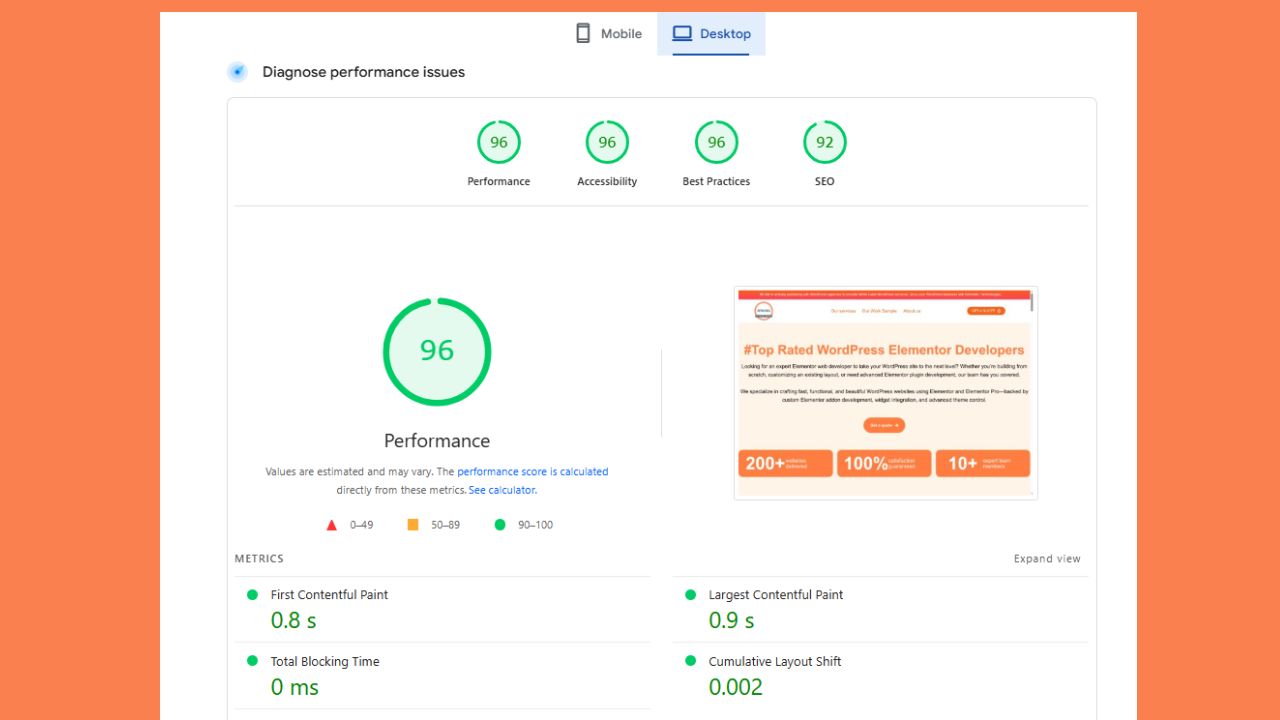
- Google PageSpeed Insights, measures performance and Core Web Vitals. Test it at pagespeed.web.dev.
- GTmetrix, provides detailed reports with waterfall charts.
- Pingdom, easy to use for load times from different regions.
Pay attention to your Core Web Vitals, the three scores Google uses to measure real user experience:
- Largest Contentful Paint (LCP), how fast your main content loads.
- Interaction to Next Paint (INP), how quickly your site responds to clicks and taps. INP replaced First Input Delay as a Core Web Vital in 2024.
- Cumulative Layout Shift (CLS), how stable the design is while loading.
These scores will guide your WordPress performance optimization journey.
Common Problems and Solutions
1. Weak Hosting and Overloaded Servers
Problem: Cheap shared hosting is one of the biggest reasons behind slow WordPress sites. Hundreds of websites fight for the same resources, so your site slows down whenever another site on the server gets traffic.
Solutions:
- Upgrade hosting, use managed WordPress hosts like Kinsta, WP Engine, or SiteGround. If the budget is limited, cloud hosting via Cloudways or Vultr is better than shared plans.
- Use a CDN, a content delivery network like Cloudflare, BunnyCDN, or StackPath delivers content from servers closest to visitors, cutting latency.
- Server level caching, good hosts offer LiteSpeed or NGINX caching for instant delivery.
Recommended Plugins and Tools:
- LiteSpeed Cache (if your host supports it)
- WP Rocket (paid but works anywhere)
- Cloudflare (free CDN plus security)
This single step can increase WordPress site speed more than almost anything else.
2. Heavy Themes and Page Builders
Problem: Some themes and page builders load hundreds of CSS and JavaScript files, making your pages heavy.
Solutions:
- Switch to lightweight themes like Astra, GeneratePress, or Kadence.
- Where possible, build pages with the native Gutenberg editor instead of heavy page builders like Divi.
- Disable unused features within your theme. A clean WordPress website design built for performance makes a real difference.
Recommended Plugins and Tools:
- Asset CleanUp, unload unnecessary scripts on specific pages.
- Autoptimize, minify CSS and JS.
A lighter theme alone can make WordPress faster instantly without touching advanced settings.
3. Too Many Plugins
Problem: WordPress plugins add functionality, but too many slow things down. Some poorly coded plugins make excessive database calls or load unnecessary scripts.
Solutions:
- Audit your plugin list. Keep only what you really need.
- Replace multiple small plugins with all in one solutions. For example, Rank Math handles SEO, schema, and sitemaps, so you do not need 3 or 4 separate plugins.
- Delete plugins you are not using. Deactivating is not enough, remove them completely.
Recommended Plugins and Tools:
- Query Monitor, spot slow plugins and scripts.
Fewer, well coded plugins mean better WordPress site speed optimization.
4. Unoptimized Images and Videos
Problem: Large image and video files are one of the most common reasons for slow pages.
Solutions:
- Compress images before uploading (TinyPNG, ImageOptim).
- Use plugins like ShortPixel, Smush, or Imagify to optimize images automatically.
- Convert images to WebP for smaller file sizes.
- Enable lazy loading so media only loads when visible.
Recommended Plugins and Tools:
- ShortPixel (WebP plus compression)
- Smush (bulk image optimization)
- Lazy Load by WP Rocket (for images and videos)
This step can improve WordPress website speed dramatically, especially for image heavy sites.
5. Lack of Caching
Problem: Without caching, WordPress rebuilds pages every time someone visits. That wastes server resources.
Solutions:
- Install a caching plugin like WP Rocket, LiteSpeed Cache, or W3 Total Cache.
- Enable page caching, browser caching, and GZIP or Brotli compression.
- Combine with a CDN for best performance.
Recommended Plugins and Tools:
- WP Rocket (simple, powerful)
- LiteSpeed Cache (best if supported by your host)
- W3 Total Cache (free but advanced)
Not sure which plugin to pick? See our comparison of the best WordPress caching plugins. Caching is one of the best ways to speed up a WordPress site.
6. Bloated Database
Problem: Over time, WordPress databases fill with post revisions, spam comments, and temporary data.
Solutions:
- Clean your database regularly with WP-Optimize or Advanced Database Cleaner.
- Limit post revisions, for example 5 per post.
- Remove spam and trashed comments.
Recommended Plugins and Tools:
- WP-Optimize
- Advanced Database Cleaner
A clean database helps optimize WordPress website speed and reduces server load.
7. WooCommerce Performance Issues
Problem: WooCommerce adds extra scripts, queries, and processes. Without tuning, it slows down quickly.
Solutions:
- Optimize product images.
- Disable unused WooCommerce features like cart fragments if not needed.
- Use a dedicated WooCommerce caching setup.
- Keep checkout simple with fewer steps.
Recommended Plugins and Tools:
- WooCommerce Booster, reduce bloat.
- WP Rocket or LiteSpeed Cache with WooCommerce settings enabled.
For eCommerce, WooCommerce speed optimization is critical for sales. Read our full WooCommerce speed guide for store specific tips.
8. Too Much JavaScript and CSS
Problem: Extra CSS and JS files delay rendering.
Solutions:
- Minify CSS and JS with Autoptimize or WP Rocket.
- Defer or delay non critical scripts like ads and analytics.
- Remove unused CSS with Asset CleanUp.
Recommended Plugins and Tools:
- Autoptimize
- Asset CleanUp
- WP Rocket
Reducing JS and CSS bloat is essential to make your WordPress website faster.
Mobile Speed Optimization
More than half of all web traffic now comes from phones, and Google uses your mobile speed to decide how you rank. A site that feels fast on desktop can still be slow on a phone, so mobile speed deserves its own attention.
- Test your site on a real phone and on the mobile tab of PageSpeed Insights.
- Use responsive, correctly sized images so phones do not download huge desktop files.
- Keep pop ups and heavy sliders to a minimum on mobile.
- Make sure your theme is fully responsive and lightweight.
Strong mobile speed improves both your rankings and the experience for the majority of your visitors.
Advanced WordPress Performance Optimization
Once you have covered the basics, advanced techniques give extra speed:
- Use Redis or Memcached for object caching.
- Enable HTTP/3 and Brotli compression.
- Preload key assets like fonts and CSS.
- Offload media files to cloud storage like Amazon S3.
These require more technical setup but take WordPress performance optimization to the next level.
Ongoing Maintenance
Speed optimization is not a one time job. Pairing speed work with regular WordPress maintenance keeps your site fast and healthy for the long term.
- Update WordPress, themes, and plugins regularly.
- Run monthly database cleanups.
- Monitor speed with GTmetrix or PageSpeed Insights.
- Keep testing after changes to make sure new features do not slow your site.
WordPress Speed Optimization Checklist
Here is a quick checklist you can follow to keep your site fast:
- Choose fast, reliable hosting
- Use a lightweight, well built theme
- Install a caching plugin
- Compress and lazy load your images
- Add a CDN
- Clean your database regularly
- Minify CSS and JavaScript
- Test on both mobile and desktop
- Keep WordPress, themes, and plugins updated
Our WordPress Speed Optimization Process
When our team handles optimization, we start with a full audit. If the hosting setup is weak, we recommend upgrading first. Then we implement fixes in layers:
- Hosting and CDN setup
- Caching and database optimization
- Image and media compression
- Plugin and theme cleanup
- WooCommerce tuning, if applicable
- Advanced tweaks and final testing
Each change is tested for impact so your site becomes faster without breaking functionality.
Speed Up Your WordPress Site With Experts
If your site feels slow and you want real results, let us help. We specialize in WordPress speed optimization, and our team will review your hosting, plugins, and database, suggest changes like server upgrades if needed, and implement proven fixes. Learn more about our WordPress speed optimization service or reach out directly.
Contact us today and let us handle your WordPress website speed optimisation so your site runs smoothly and loads in seconds.
WordPress Speed Optimization FAQs
What is the fastest way to speed up a WordPress site?
Upgrading hosting and adding caching. These two fixes bring the biggest improvements.
Can I optimize speed without coding?
Yes. Plugins like WP Rocket, LiteSpeed Cache, and ShortPixel make it easy.
How long does WordPress speed optimization take?
Basic fixes like caching and image compression can be done in a day. A full optimization across hosting, database, and code usually takes a few days, depending on the site.
What is a good page load time for WordPress?
Aim for under 3 seconds, and ideally under 2. Faster pages rank better and keep more visitors engaged.
Does WooCommerce always slow down WordPress?
Not if optimized. With caching, optimized images, and fewer extensions, WooCommerce can be fast.
How often should I optimize my database?
At least once a month, especially for active blogs and stores.
Which caching plugin is best?
WP Rocket is the easiest premium option. LiteSpeed Cache is excellent if your host supports it.
Do too many plugins really hurt speed?
Yes. Keep only essential, well coded plugins to speed up your WordPress website.
What tools should I use to test speed?
Google PageSpeed Insights, GTmetrix, and Pingdom.
Is a CDN necessary for small sites?
Even small sites load faster with a CDN, especially for global visitors.
Will optimization change my site design?
No. Done correctly, optimization improves speed without touching your design.
Why hire professionals for optimization?
Because every site has unique issues. Experts ensure speed improvements without breaking features.